















Editing Asset Data Using Mass Edit
In this tutorial we will show you how to access and use the Mass Edit feature.
The Mass Edit tool allows you to quickly edit multiple assets simultaneously. In this tutorial we will show you how to access and use the Mass Edit feature.
The Mass Edit feature lives in the Inventory Page of your Beam workspace. If you are unfamiliar with the Inventory Page, we recommend you check out our documentation on Navigating the Inventory Page.
Accessing Mass Edit
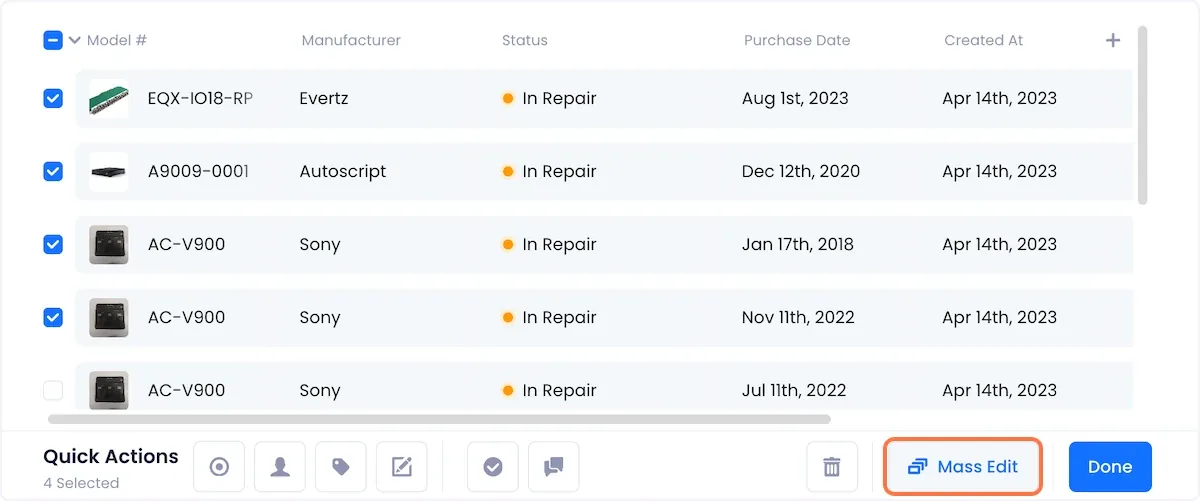
Select the assets that you want to edit in your Inventory, and click the Mass Edit button at the bottom right of the screen.
Using Mass Edit
The mass edit modal is split into two sections:
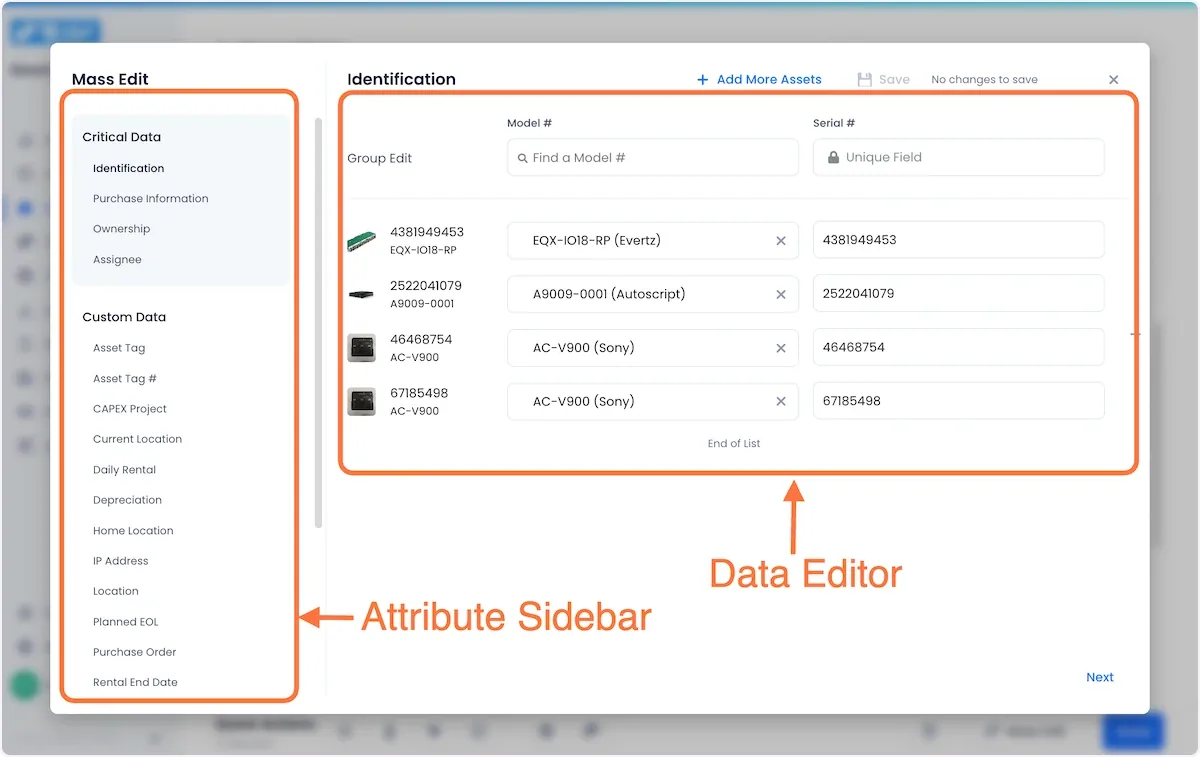
Attribute Sidebar
The Attribute Sidebar shows a running list of all the attributes that exist in your Beam workspace. It is divided into four sections:
- Critical Data - Data that is essential for asset identification, tracking, and financial management (e.g. serial number, purchase date, assignee)
- Custom Data - Custom fields that your workspace administrator has setup to capture data specific to your team's workflow.
- Tags - Tags used to categorize assets into groups for easy filtering and sorting.
- Status - Indicator of the current disposition of an asset (e.g. online, offline, decommissioned).
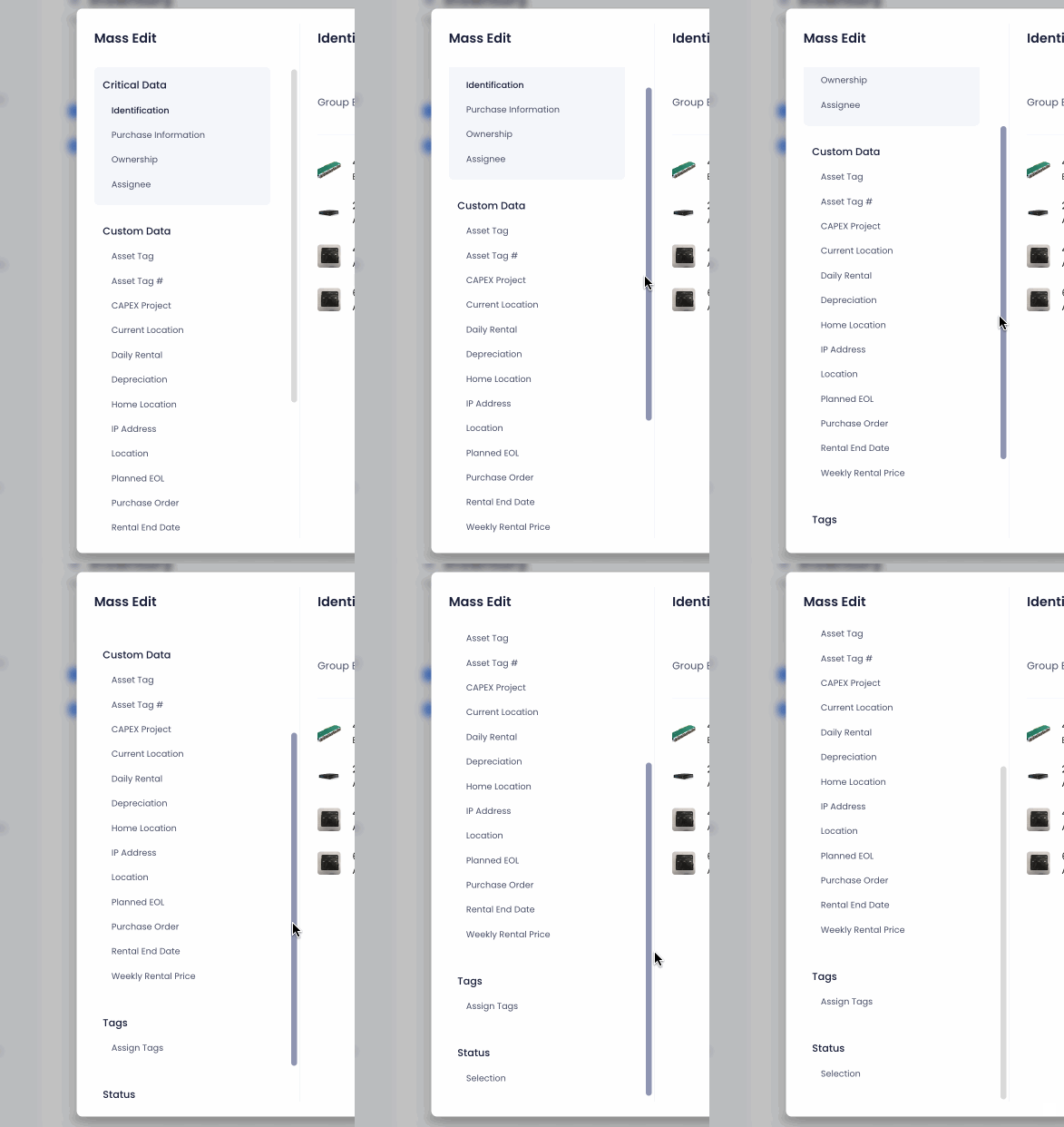
From the attribute sidebar, you can select the attributes that you want to edit.
Data Editor
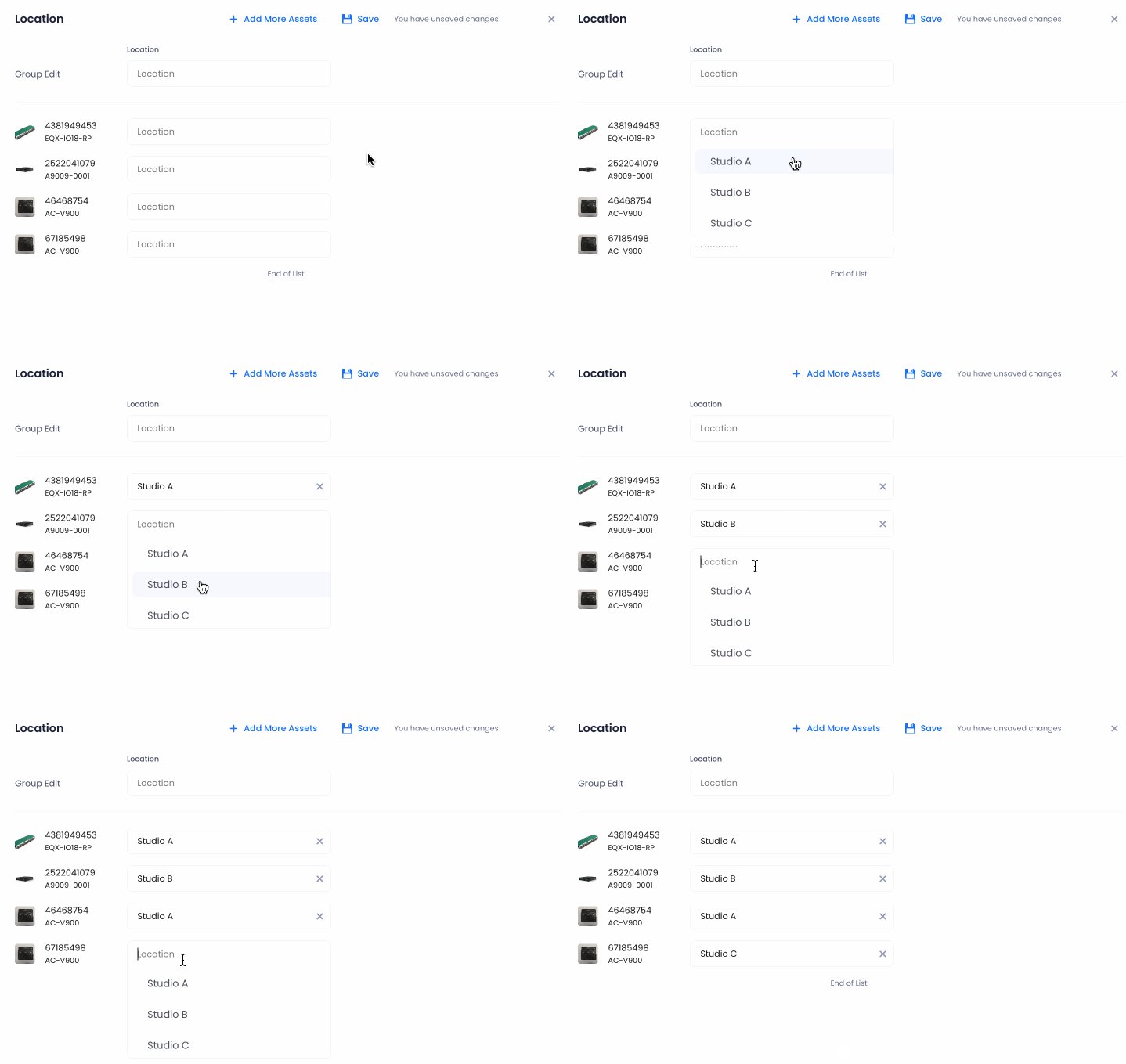
Once you've selected the attribute that you want to edit, the data editor to the right of the modal will display the values of that selected attribute for each of your each of your selected assets. You can individually edit each asset's value using the associated fields:
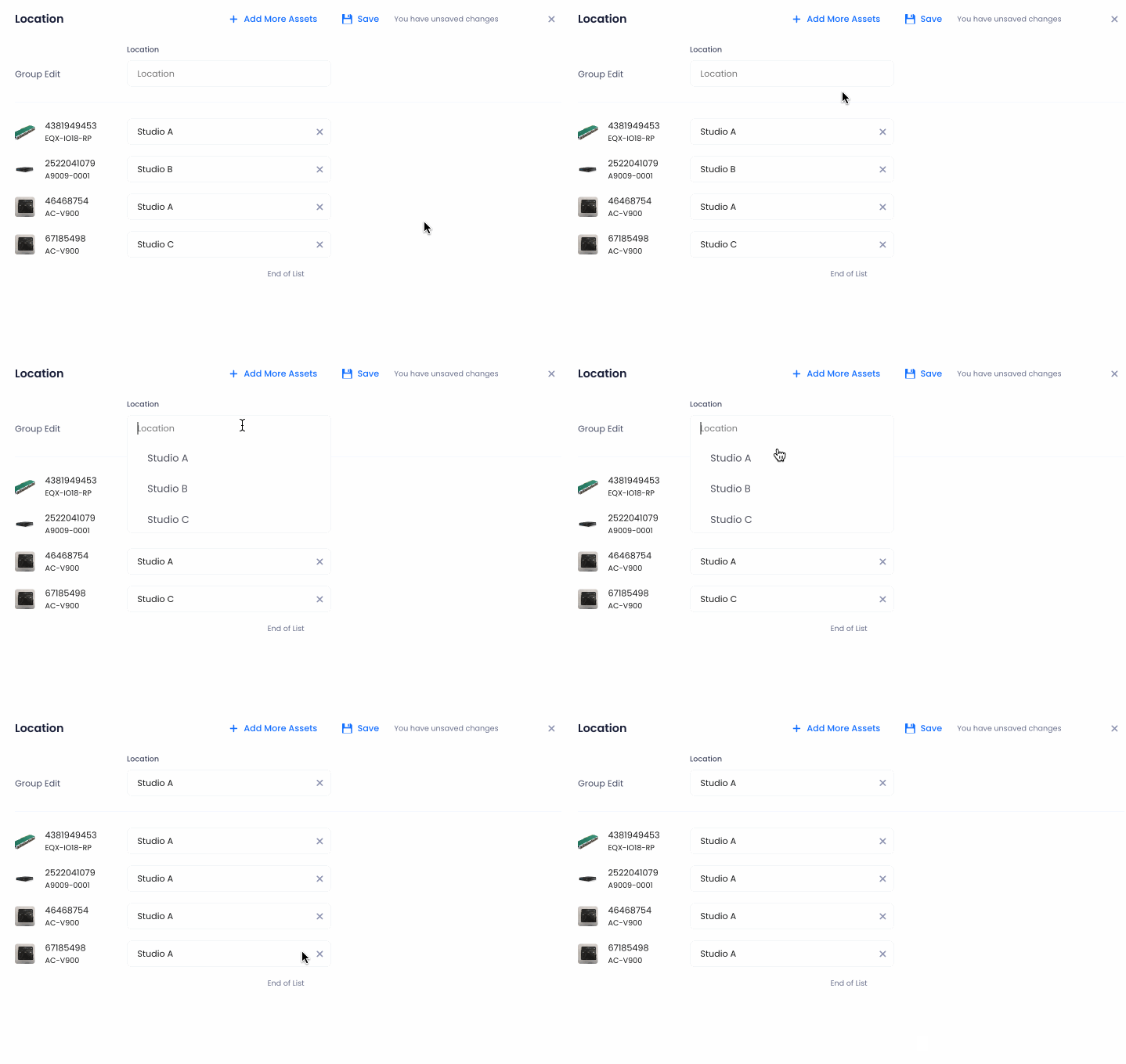
Alternatively, you can apply a single value to all your selected assets using the group edit field at the top.
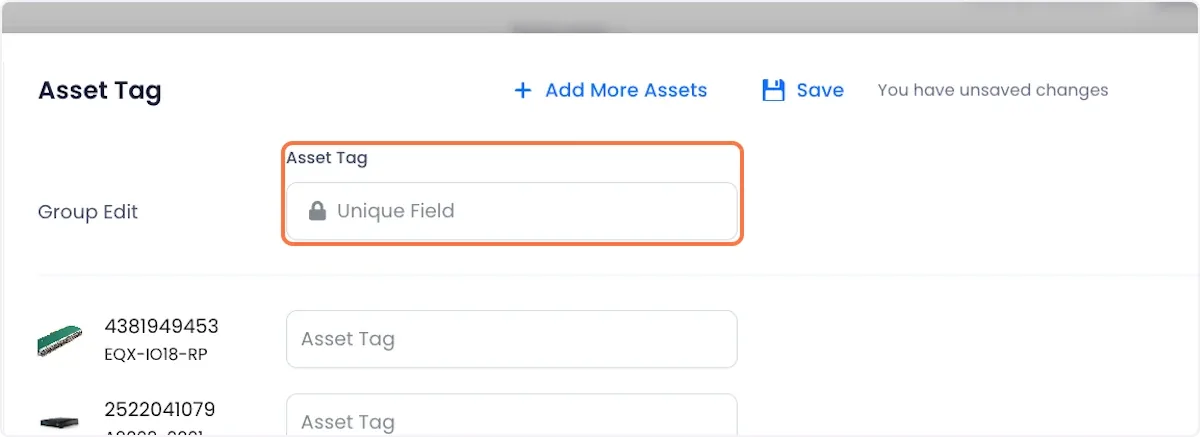
If the field you have selected is configured to store unique values only, the group edit feature will be locked.
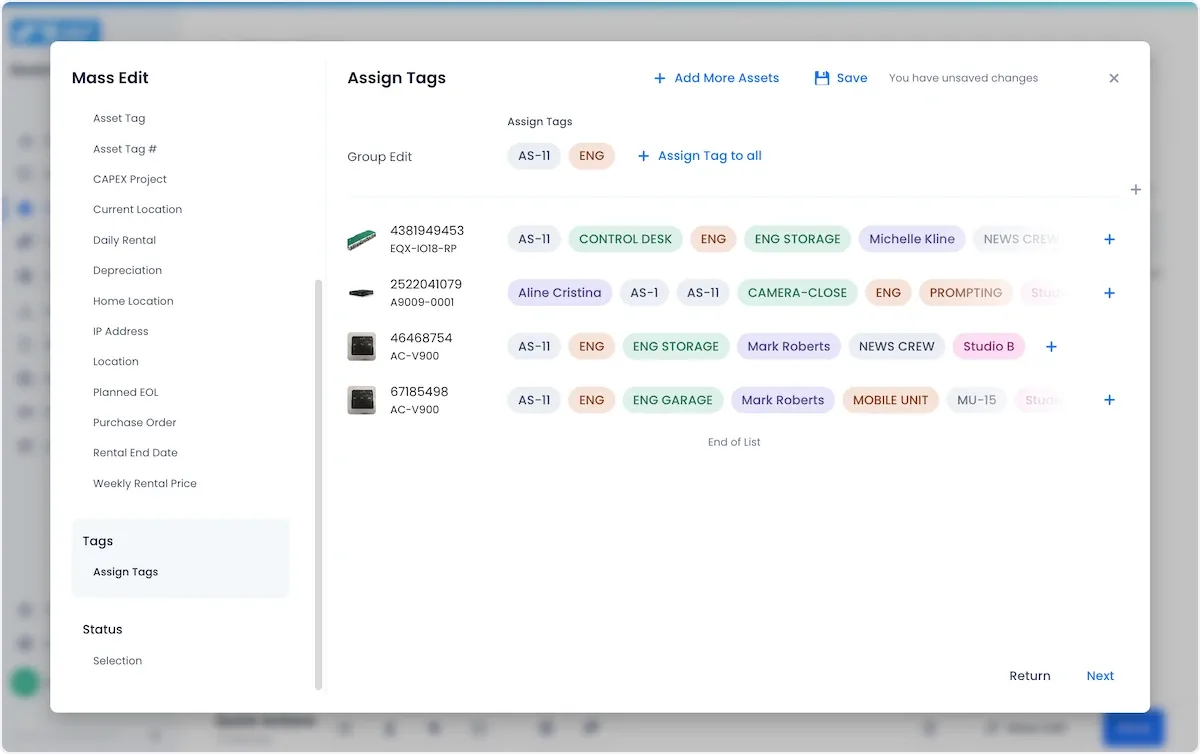
For tags, the interface is slightly different. The group edit section doesn't have a blank value. Rather, it shows tags common to all selected assets. You can add/remove tags from/to all assets in this group edit section:
When you're satisfied with your changes, click the Save button at the top of the editor.
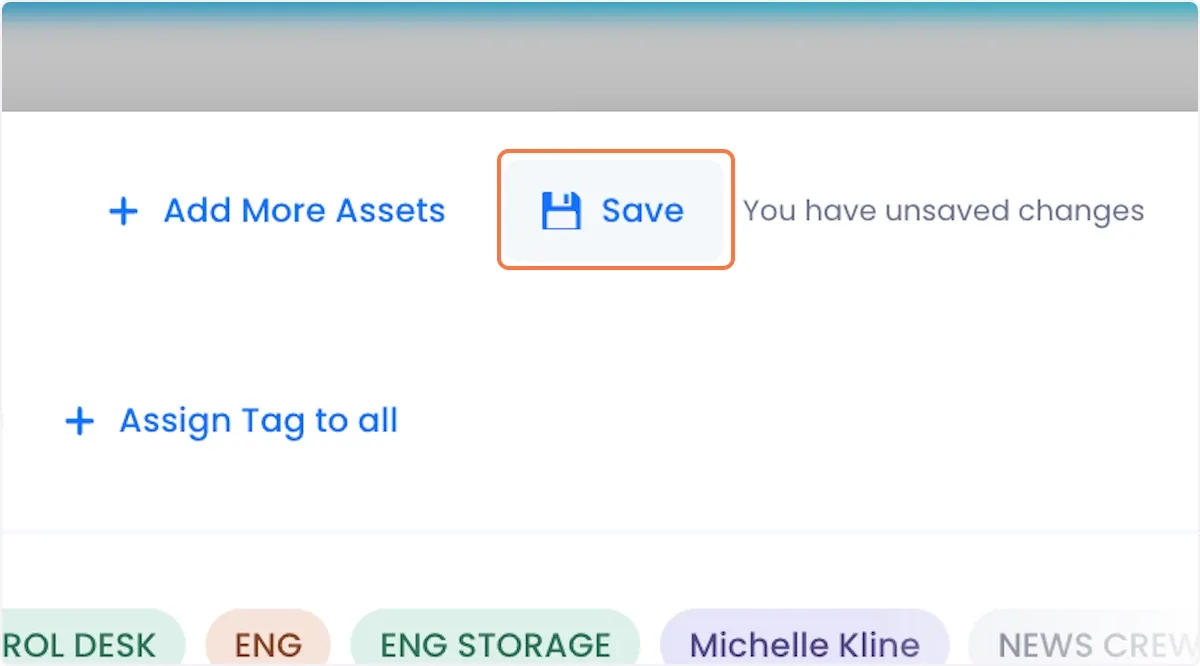
Mass edit lets you edit multiple attributes at the same time. To do this, click into each attribute you want to edit, edit their values, and only click save once you've edited all the attributes that you want to edit.
Related Links
Searching for Assets in the Inventory Page