















Selecting Your Preferred Units Of Measurements
In this tutorial, we'll show you how to configure your preferred units of measurement.

Beam’s R2 integration provides you up-to-date product data that supports your asset management workflows. As part of the integration, Beam lets you choose which units you want to use to measure weights and dimensions. This ensures that even if our product matching algorithm finds data in a unit of measurement that you don't use, it will convert any data it finds into your preferred units. In this tutorial, we'll show you how to configure your preferred units of measurement in the Beam workspace.
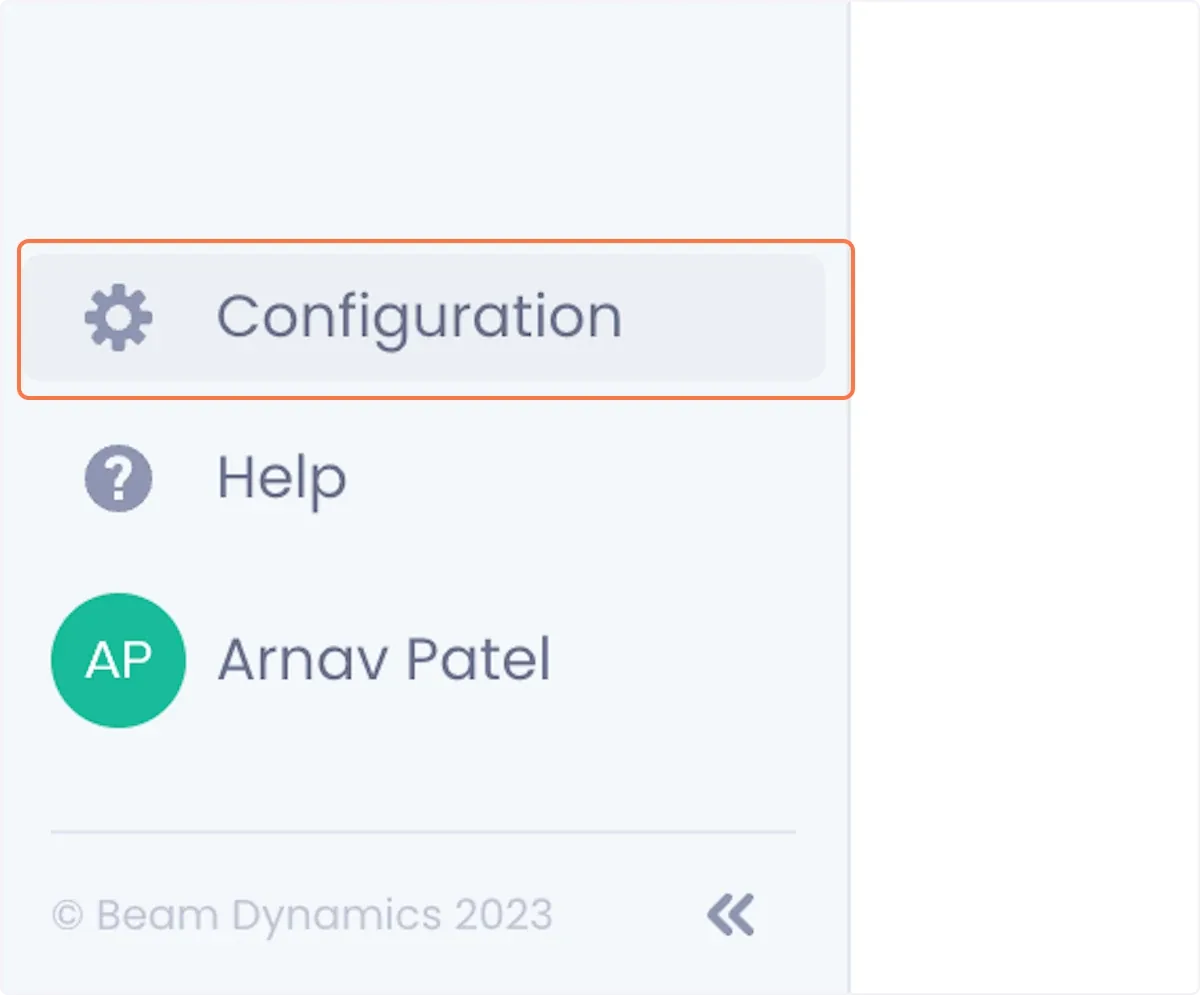
Units of measurement are set up in the R2 Configuration section of the Beam workspace. To access R2 configuration click on Configuration in the side panel.
On the configuration page, navigate to the R2 configuration by clicking Integrations and then click the Configure button on R2
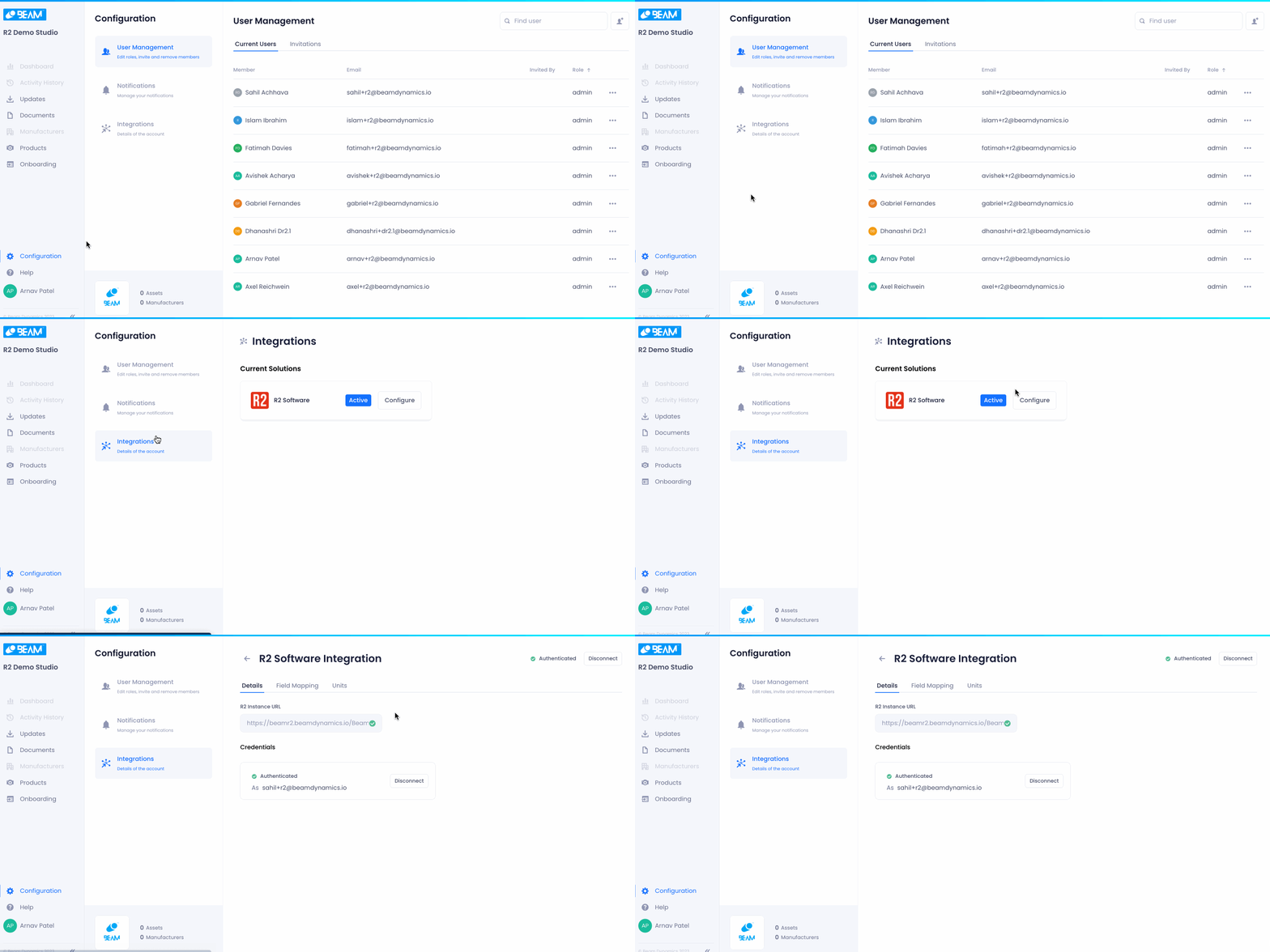
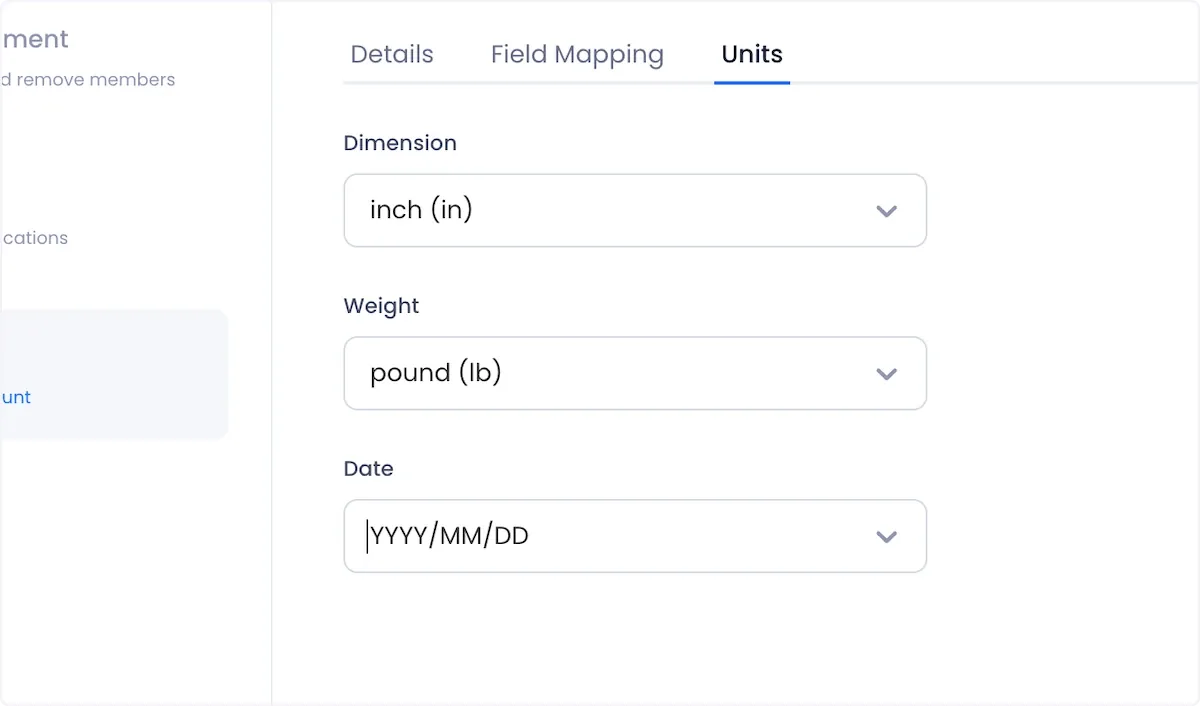
In the R2 configuration menu, click the Units tab.
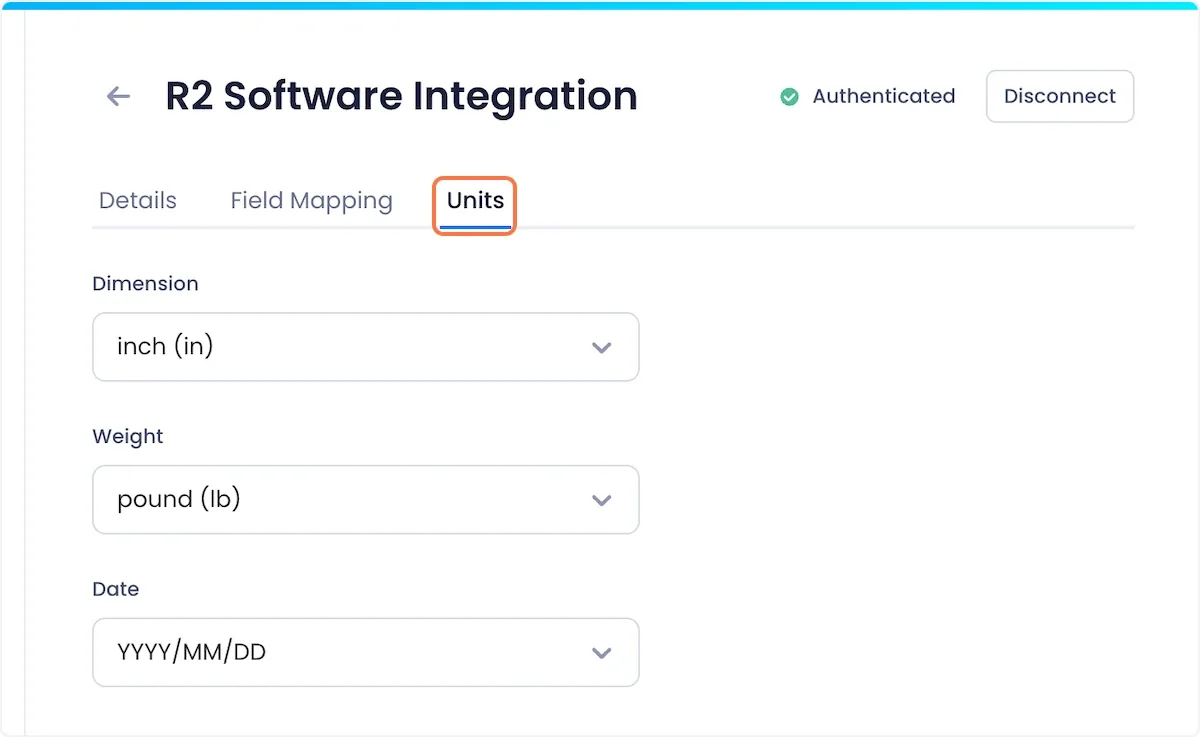
In this tab you will be able to set the units that you want to use for weight, dimensions and date using the given dropdown menus.